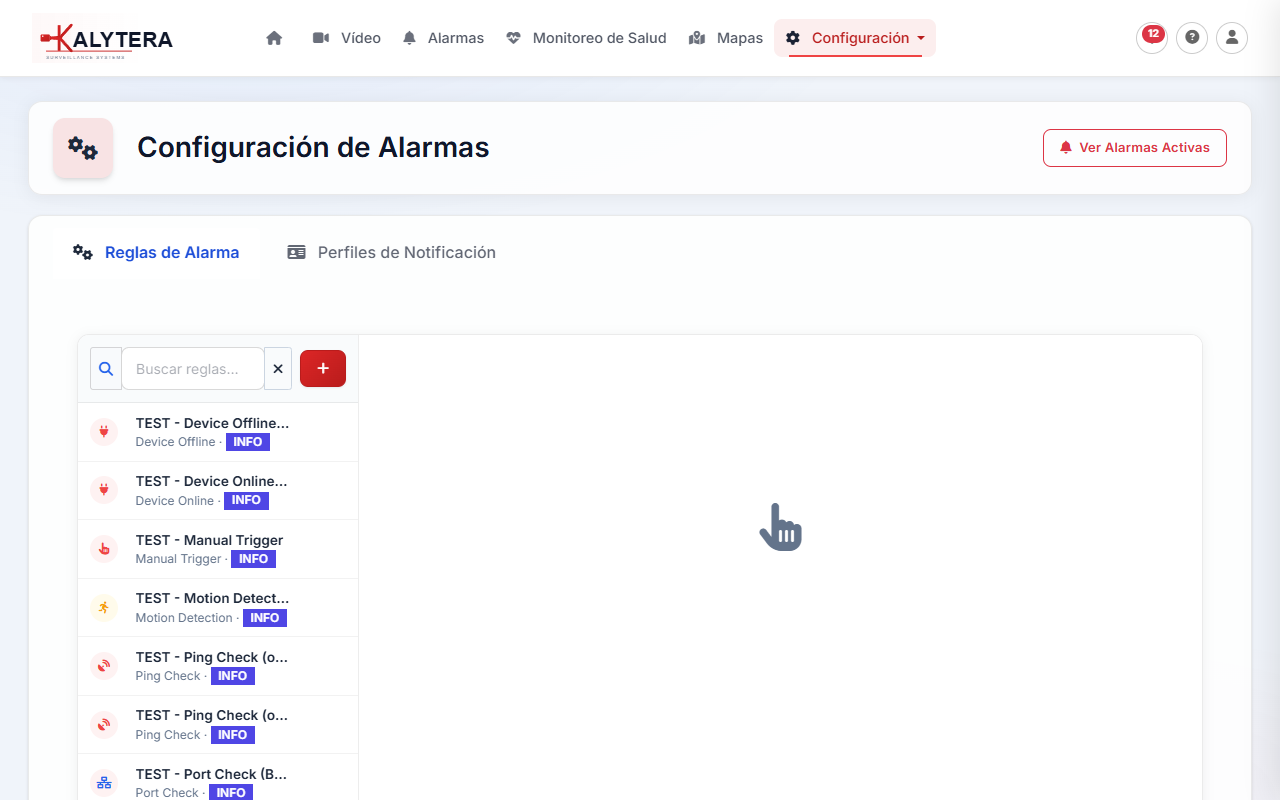
Kalytera's alarm system lets you create rules that fire when specific events occur — a camera going offline, motion detected, storage running low, or an AI object crossing a virtual tripwire. The system supports 45+ trigger types across six categories.
Configure alarm rules at Setup → Alarm Configuration. View active alarms under Alarms in the top navigation.
License requirement: Alarms and analytics are available on Standard edition and above. The Community Edition does not include the alarm system.
Kalytera includes 7 ready-to-use alarm templates you can activate with a single click:
| Template | Trigger | Default Action |
|---|---|---|
| Device Offline | Camera loses network connectivity | System notification |
| Motion Detection | Motion detected by the analytics engine | System notification + recording |
| Recording Stopped | Camera unexpectedly stops recording | System notification |
| Storage Low | Available storage falls below threshold | System notification |
| Video Tampering | Camera view is blocked, defocused, or redirected | System notification |
| Video Loss | Camera stream drops out completely | System notification |
| Stream Health | Stream quality score falls below threshold | System notification |
Click the Activate button next to any template to enable it with the default settings. The template creates a fully configured alarm rule that you can then edit to adjust thresholds and actions.
Click New Rule to build a custom alarm from scratch:
Kalytera supports triggers across six categories:
Analytics-based triggers require AI analytics to be enabled for the target camera (Setup → Devices → Edit → Analytics). Available triggers include:
Combine Line Crossing triggers with a nighttime schedule to alert on perimeter breaches only after hours — preventing daytime false alarms from normal foot traffic.
Each alarm rule can trigger one or more actions when it fires:
| Action | Description |
|---|---|
| System Notification | Shows an alert in the Alarms panel in the UI (visible to all logged-in users). |
| Email Notification | Sends an email to one or more addresses. Requires SMTP to be configured in Admin → System. |
| Webhook | Sends an HTTP POST with alarm details to an external URL (e.g., Slack, Teams, custom integration). |
| Start Recording | Triggers a manual recording on the target camera for a configured duration. |
| Mobile Push | Sends a push notification to paired mobile devices (requires the Kalytera mobile app). |
Active alarms are displayed in the Alarms section of the navigation. The alarm list shows when each alarm fired, which device triggered it, the severity level, and the current state (Active / Acknowledged / Resolved).
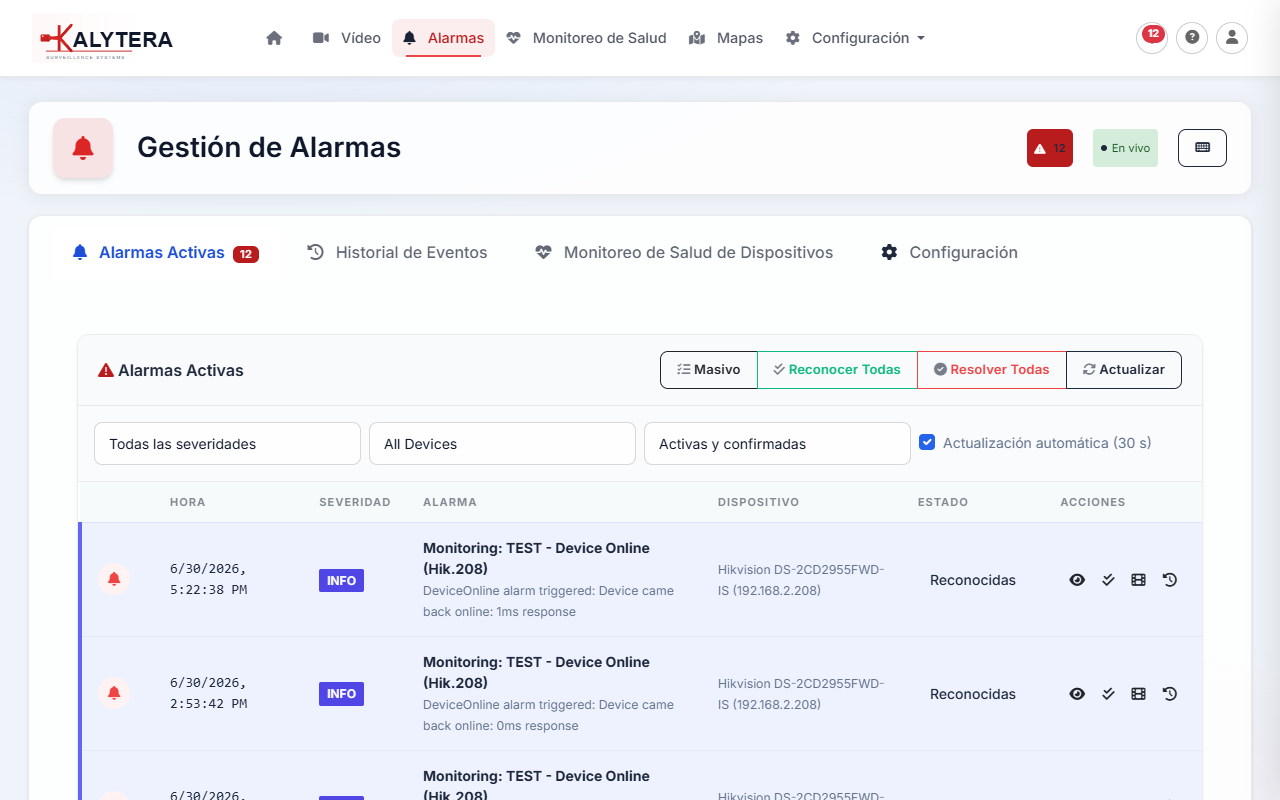
Click Acknowledge on an alarm to mark it as reviewed. Alarms auto-resolve when the underlying condition clears (e.g., camera comes back online).