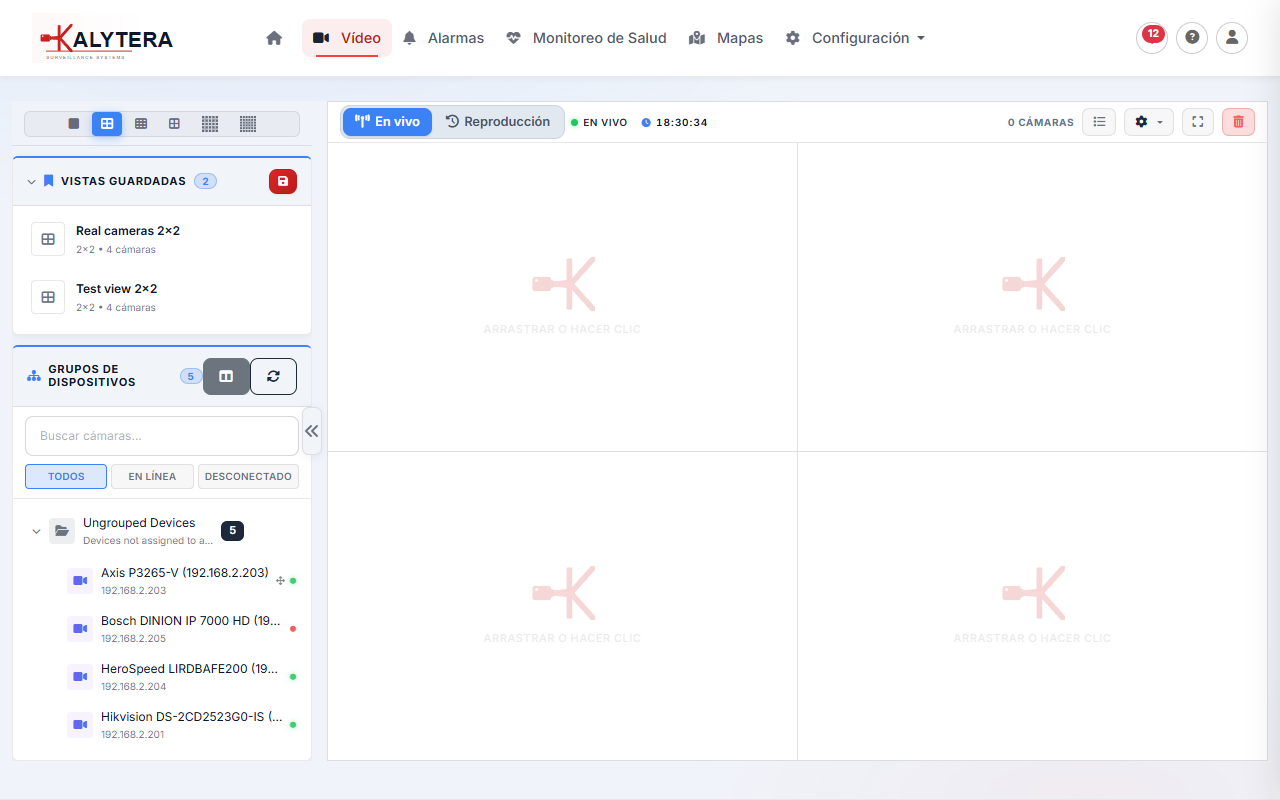
The Live View page provides real-time monitoring of all your cameras. It supports up to 36 simultaneous camera streams (6×6 grid), drag-and-drop camera assignment, saved views, and PTZ control.
Access Live View from Video → Live in the top navigation.
Use the grid selector toolbar to choose how many cameras to display simultaneously:
| Layout | Cameras | Best for |
|---|---|---|
| 1×1 | 1 | Full-screen focus on a single camera |
| 2×2 | 4 | Small deployments or a focused area |
| 3×3 | 9 | Mid-size deployments |
| 4×4 | 16 | Standard multi-camera monitoring |
| 5×5 | 25 | Large deployments |
| 6×6 | 36 | Maximum coverage overview |
The left sidebar shows the Device Tree — a searchable list of all cameras organized by device group. To add a camera to the grid:
To remove a camera from a cell, right-click the cell and select Remove Camera, or drag another camera onto the same cell to replace it.
Kalytera delivers live streams using two technologies, selected automatically based on browser and camera capabilities:
Right-click any camera cell to see which streaming mode is active (Info) and to force a switch between Main and Sub stream.
Save the current camera arrangement as a Saved View to restore it with a single click:
Saved views appear in the Saved Views panel at the top left. Click any saved view to instantly restore that camera layout. Views can be shared across operators — all users see the same saved views.
Double-click any camera cell to enter fullscreen mode for that camera. Press Esc or double-click again to return to the grid. Use fullscreen for detailed inspection of a specific camera stream.
For PTZ (Pan-Tilt-Zoom) cameras, a control overlay appears when you click a camera cell in the grid. Use the on-screen directional buttons or scroll the mouse wheel to zoom in and out. PTZ control works best over WebRTC streams (lowest latency) — if your camera falls back to HLS, there will be noticeable delay between command and movement.
PTZ control requires the camera to support ONVIF PTZ or a native SDK. Check the camera's specifications if PTZ controls don't appear.