Contents
Licensing Guide
License editions, feature comparison, and how to activate and manage your Kalytera license.
License Editions
Kalytera VMS is available in four license tiers to match different deployment sizes and feature needs:
| Edition | Cameras | Price | Key Additions |
|---|---|---|---|
| Community | Up to 4 | Free | Core recording and live view |
| Standard | Up to 16 | Per camera | Alarms, analytics, export, Maps |
| Professional | Up to 64 | Per camera | Multi-node, advanced analytics, API |
| Enterprise | Unlimited | Contact us | White-label, on-prem support, SLA |
Feature Comparison
| Feature | Community | Standard | Professional | Enterprise |
|---|---|---|---|---|
| Live view (WebRTC + HLS) | ✓ | ✓ | ✓ | ✓ |
| Continuous / Scheduled / Motion recording | ✓ | ✓ | ✓ | ✓ |
| Recording playback & export to MP4 | ✓ | ✓ | ✓ | ✓ |
| Alarm rules & notifications | — | ✓ | ✓ | ✓ |
| AI object detection & analytics | — | ✓ | ✓ | ✓ |
| Maps (floor plan layout) | — | ✓ | ✓ | ✓ |
| Multi-recording-node deployment | — | — | ✓ | ✓ |
| REST API access | — | — | ✓ | ✓ |
| White-label branding | — | — | — | ✓ |
Activating Your License
- Navigate to Admin → Licensing.
- Click Activate License.
- Paste your license key into the field and click Activate.
- Kalytera verifies the key against a hardware fingerprint unique to the server. The license is bound to that machine.
Moving Kalytera to a different server requires a license transfer. Contact support to release the old hardware binding before activating on the new machine.
Online vs. Offline Activation
- Online (default): Kalytera connects to the Kalytera license server to validate the key. The server must have internet access at activation time.
- Offline: Generate a hardware ID from the Licensing page, send it to support, and receive an offline activation file to upload.
License Management
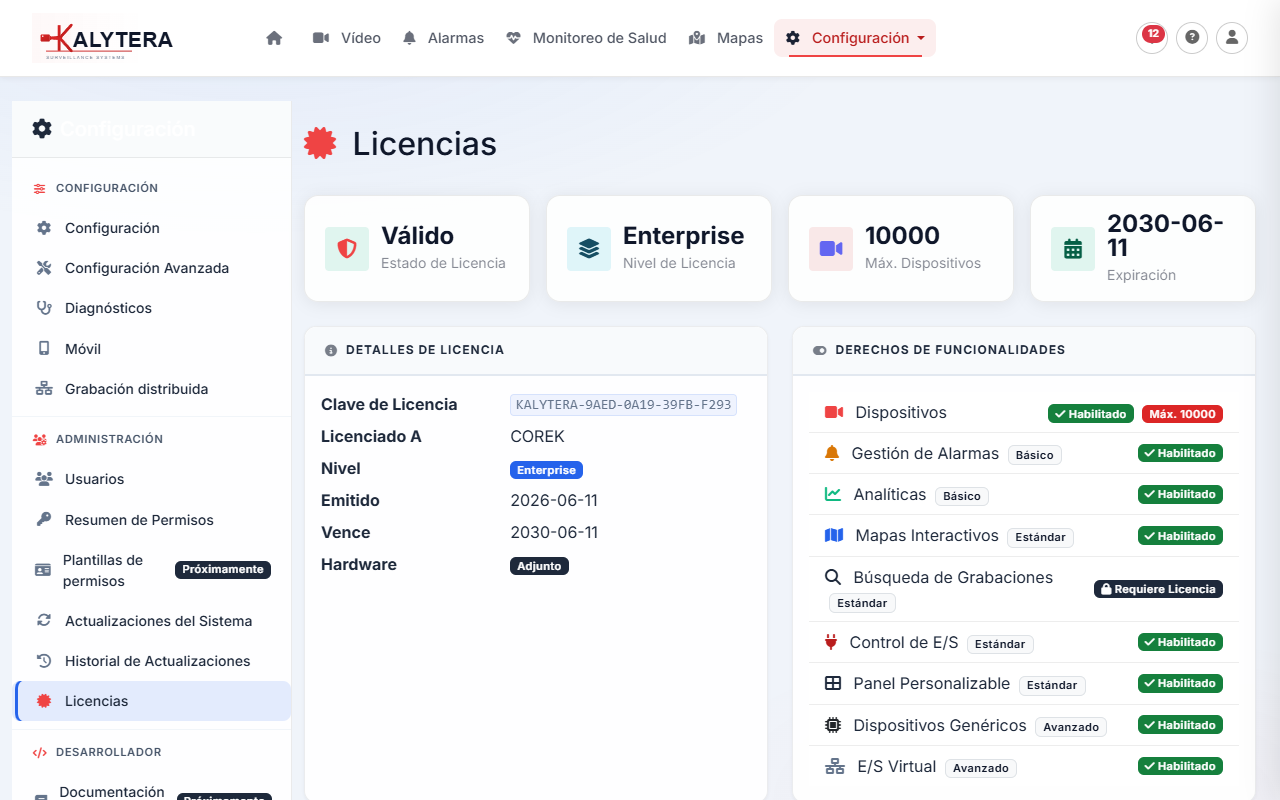
From Admin → Licensing you can:
- View the current edition, camera limit, and expiration date.
- See which features are enabled and which require an upgrade.
- Request a license transfer (to move to a new server).
- Deactivate the license before decommissioning the server.
Upgrading Your License
Purchase an upgrade from the Pricing page. After purchase, you receive a new license key. Navigate to Admin → Licensing, click Activate License, and enter the new key — the system upgrades immediately without a restart.